
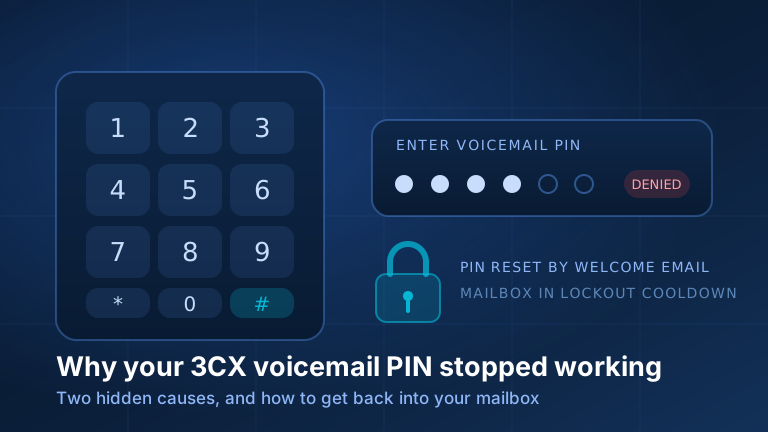
When a 3CX voicemail PIN stops working, it is almost never the phone and almost never the mailbox. In twelve months of tickets, two causes account for the overwhelming majority, and neither one is visible from the handset. The first is that somebody resent your welcome email. When an administrator opens your user record and hits reset, 3CX regenerates your credentials and mails you the new set, and the voicemail PIN is one of the things in that set. The PIN you memorised on your first day is now dead, replaced silently, by an action taken by somebody else on the other side of the office.
The second is that you locked yourself out by guessing. After a run of wrong PINs, 3CX blocks the mailbox for a cooldown period. The maddening part is what happens next: you finally remember the right PIN, type it in, and it fails too. Nothing in the prompt says you are in a timeout, so the obvious conclusion is that the system is broken. It is not. Stop dialling, wait the lockout out, and the correct PIN works again, or have your admin change the PIN, which clears the lock immediately.
Setting up voicemail in two minutes
From any desk phone on your extension, press the message key or dial your voicemail access number. 3CX documents 999 as the product default, but it is a configurable system extension, so it varies by deployment. On the systems we build we match it to the extension length (999 for three-digit extensions, 9999 for four), and your welcome email prints the right number.
The system asks for your PIN, which you finish with the pound key. From the main menu, everything lives behind a single digit:
| Press | What it does |
|---|---|
| * | Play your messages |
| 9 | Open the options menu |
| # | Exit |
| 9 then 1 | Change your profile status |
| 9 then 3 | Dial a number |
| 9 then 4 | Delete all read messages |
| 9 then 5 | Record your self-identification message (your spoken name) |
| 9 then 6 | Play mailbox information |
| 9 then 7 | Change your voicemail PIN |
| 9 then 8 | Change your greeting message |
| 9 then 9 | Repeat the menu prompts |
A complete first-time setup is two recordings and one change: 9 then 8 for the greeting callers hear, 9 then 5 for your spoken name, and 9 then 7 to set a PIN you will remember. The spoken name is not optional. It is what makes you findable in the company directory. Do all three the day your welcome email arrives, while the PIN in it is current.
“My PIN is wrong”: the two hidden reasons, in detail
A welcome email resend quietly replaces your PIN
This is the one nobody connects. The welcome email is not a read-only reminder. In 3CX V20 an administrator opens Admin > Users, selects the user and uses the reset control on the General tab; 3CX regenerates that user’s credentials and resends the welcome email with the new information in it. The voicemail PIN goes along for the ride.
So the sequence that breaks people is entirely ordinary. Someone cannot log into the phone app. An admin helpfully resends the welcome email. A week later that same person picks up the handset, types the PIN they have always used, and it fails, because they never read past the login details in the second email, and the PIN below them had already changed.
The fix is simple once you know where to look. Open the most recent welcome email and read the whole thing: the current voicemail PIN is in it. Then dial in and change it to something memorable with 9 then 7. Worth noting for administrators: the self-service forgot-password link on the login page is documented by 3CX as resetting only the web client password. It is the admin-side reset, the one that fires a fresh welcome email, that carries the side effect, so if you only need to restore a login, prefer the route that does not regenerate everything else.
Repeated wrong attempts lock the mailbox
3CX protects mailboxes against PIN guessing, which is a good thing: a mailbox reachable from an inbound call has always been a target. After a run of failed attempts the box is temporarily blocked, and while it is, every PIN is wrong, including the right one.
Two things to know. The lockout clears itself; it is a cooldown measured in minutes, and 3CX does not expose the duration as a setting you can shorten. And an administrator changing the PIN unlocks the mailbox immediately, which is why the fastest way out, when somebody is waiting on a message, is a support call. Hammering the keypad may restart the clock.
A mailbox that locks repeatedly is a symptom, not the problem: almost always a stale PIN from the scenario above, occasionally an old handset still configured against a departed employee’s extension. We wrote about that class of quiet, hard-to-attribute fault in our notes on phone system configuration bugs.
How to reset or change a 3CX voicemail PIN
As a user, if you know your current PIN: dial voicemail, enter the PIN followed by pound, press 9 for options, press 7, then follow the prompts to enter and confirm the new one. The change reaches the management console straight away.
As a user, if you do not know it: you cannot set it from the web client. 3CX confirms the PIN field in the user portal is read-only, so it is the current welcome email or your administrator. There is no self-service path.
As an administrator: go to Admin > Users, select the extension, and open its Voicemail tab. The PIN lives there alongside the mailbox’s other settings: language, whether the date and time of each message is read out, the caller ID announcement, and the email options. Change the PIN, save, tell the user. That sets a known PIN and clears any active lockout, and it is strictly better than hitting reset on the General tab, which regenerates a whole set of credentials and sends phones and apps looking for details nobody has given them.
Is there a default 3CX voicemail PIN?
No single PIN works on every system. Each extension has its own voicemail PIN, set on the user’s record and printed in their welcome email, which is why a resent welcome email changes it. If you have never had one, or the one you have stopped working, the current welcome email or your administrator is the answer, as above.
Power moves worth knowing
Checking any extension’s voicemail from another phone
This is the trick we hand out most often, and it answers “I am at the front desk and I need the messages on my own extension.” Dial the voicemail access number from any company phone. When asked for a PIN, press #. The system then asks which extension you want; enter that number and its PIN. You are in that mailbox, full menu, from a handset that is not yours.
One prerequisite catches people: your own extension has to be set up to ask for a PIN. If PIN authentication has been disabled on the phone you are dialling from, you are never prompted, so there is no prompt at which to press #, and you drop into your own mailbox every time. Convenience for one user, dead end for the trick, which is why we leave PIN authentication on.
The opposite move is worth knowing too. To drop a caller straight into somebody’s mailbox without ringing their desk, the default 3CX dial code is *4 followed by the extension number, so *4100 leaves a message in the mailbox of extension 100. Treat that as a default rather than a certainty: dial codes are editable per system under Admin > System > Dial Codes, so check yours before it goes on a desk card.
Getting into the dial-by-name directory
A dial-by-name directory that skips half the staff is not broken. 3CX’s route-by-name feature matches on first or last name and plays back your recorded name to the caller, so a user with no self-identification message cannot be offered and is absent from the directory.
The recording is made through the voicemail menu (9 then 5), which is why the fix for “I am not in the directory” so often surfaces as “voicemail is disabled for this extension.” If the mailbox is off there is no menu to dial into, so the name can never be recorded and the directory entry can never exist. Enable voicemail first, record the name second.
Notifications, and a word on transcription
Where those messages go by email, and why they sometimes do not arrive, is its own subject: see 3CX voicemail to email.
Under each user’s Voicemail tab the email options run from no notification, through notify me, to attaching the recording, to attaching it and deleting it from the mailbox. For anyone who lives out of their inbox, attachment delivery removes the PIN from the equation: the message arrives as a file you can play, forward or keep.
Transcription goes further and puts the words in the email, so a message can be triaged without listening to it. In V20 it needs the right licence tier plus a speech engine wired into the system, and is switched on per department rather than per extension, which is the usual source of confusion when one person has transcripts and their neighbour does not. On our systems it is generally on for everyone.
For managers: making sure voicemails actually get returned
The question behind a surprising number of voicemail tickets is not technical. It is a manager asking whether messages get picked up and called back, and PIN trouble is often the first sign that somebody has not opened their mailbox in months.
Three practical levers. Turn on attachment-style notification for roles where a missed message costs money, so the evidence lands in an inbox, not behind a forgotten PIN. Use the reporting in the admin console. The user activity reports cover answered and unanswered calls over a period, and are visible to management-level roles, not only owners. And review where unanswered calls go at all: calls that should reach a queue or a colleague before a mailbox are worth routing properly. That is one of the more valuable hours you can spend on a 3CX phone system.
Voicemail PIN still blocked?
If you are still staring at a phone that will not let you in, check two things in order: the newest welcome email in your inbox, then the clock. Give a locked mailbox a few quiet minutes before trying again. Beyond that it is an admin-side change of about thirty seconds.
For the wider set of voicemail questions we get asked, see our roundup of common 3CX voicemail questions and issues, and for how we handle tickets like this, the way we do 3CX support. Otherwise: locked out and in a hurry? Email our support team at support@telnamix.com and we will reset it. Send your extension number and we will have you back into your messages before you finish explaining the problem.