
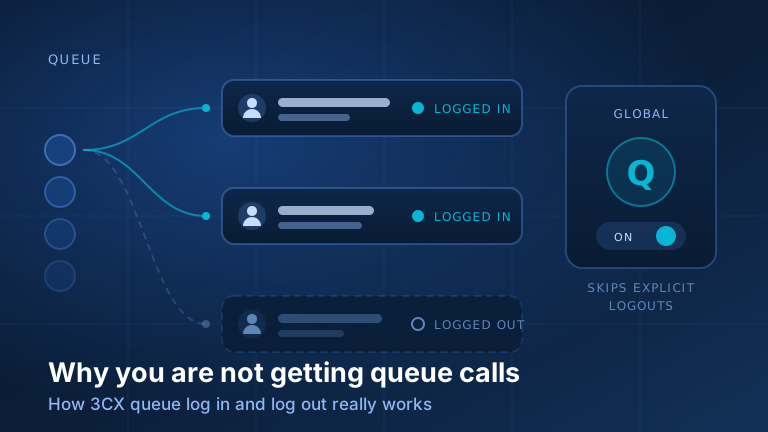
If an agent says they have had zero queue calls all day, they are almost certainly logged out of at least one queue, and the button they have been pressing cannot log them back in. On 3CX V20 the global queue toggle (the control in the apps that everyone calls the Q button, the login and logout item under your profile in the web client, the BLF key on a desk phone) is supposed to put you back into every queue you belong to. It has one exception, and that exception is behind most of the queue tickets we handle.
The global toggle will not override an explicit logout from an individual queue. 3CX states it plainly in its own documentation: the global queue toggle adds an agent to all queues or removes them from service, however it will not override explicit queue logouts. So if that agent was ever logged out of one specific queue in the Panel view (by themselves, months ago, or by a supervisor), that logout is sticky. Every press of the global button from then on logs them into the other queues and silently skips the one they actually need. The fix is to log back into that queue individually, which on V20 you can only do from the Panel view in the web client.
Two switches, not one
The mental model that clears this up in ten seconds: every agent has two layers of queue state, and the buttons on the phone touch only one of them.
- Global state: are you in service at all? One switch, exposed on every client, applied across all of your queues.
- Explicit per-queue state: are you in this queue specifically? One switch per queue, set deliberately, and it outranks the global one.
Once an explicit logout is set on a queue, that queue is out of reach of the global switch until somebody clears it. That is why a dashboard can show the same person logged out of the sales queue since April and answering support calls every day: the two states are tracked separately, and nothing in the daily routine ever touches the April one. A new extension defaults to logged in, so this only becomes a problem after someone has clicked something.
How to log in and out of a 3CX queue on each client
The controls are named differently everywhere, which does not help. Here is what each client can actually do on V20.
| Client | Global login / logout | Per-queue login / logout |
|---|---|---|
| Web client / PWA | Your profile, top right: “Login to queue” / “Logout from queue” | Yes: Panel, queue dropdown at top right beneath your profile, then click the Logged in / Logged out indicator |
| Windows Softphone | Quick action panel | Queue panel views, but agents who are not queue supervisors cannot perform login or logout operations there |
| iOS / Android app | Yes | No, the apps offer the global toggle only |
| Desk phone | A BLF key programmed to log in, a second one to log out, each with a spoken confirmation; or dial codes | No |
Desk phones have no Q button of their own. Where the handset has free BLF or line keys, we program one to log in and one to log out; the phone reads back a spoken confirmation so the agent knows it landed. Where it does not, there are dial codes defined in the management console: *62 in and *63 out by default, though an administrator can change them, so check yours before printing a desk card. Either way the desk phone drives the global switch. It cannot reach an explicit per-queue logout, and it will not tell you one exists.
One version note, because it catches people mid-upgrade: the old Electron-based 3CX Desktop App was deprecated and 3CX blocked its connections in January 2026. On Windows the supported clients are now the Windows Softphone and the web client or its installable PWA. A user still hunting for a Q button in an app that no longer connects has a different problem wearing the same costume, the kind of thing we catch during a 3CX deployment and management health check rather than after a week of missed calls.
The mobile-only agent and the call that keeps coming back
The apps expose only the global toggle, which makes mobile-only agents the group most likely to end up half logged in and the least able to see it. If you have staff working entirely from the phone in their pocket, expect this, and give them a web client bookmark for one purpose: checking Panel.
It also explains the complaint that a queue call “loops back” instead of moving to the next agent. Ring time controls how long a call rings the currently targeted members before a new polling cycle starts: a new cycle, not the next name down a list. If the other agents are sitting on explicit logouts, the pool has one member in it, so every cycle picks the same person. The system is not stuck; it is doing exactly what it was told with the only agent it has.
Polling strategy changes the shape of that loop, not the cause. V20 offers Ring All, Prioritized Hunt, Hunt Random Start, Round Robin, Longest Waiting, Least Talk Time, Fewest Answered and two Hunt by Threes variants; skills-based strategies are an AI edition feature. Round Robin distributes among logged in agents, and that phrase is the operative one in all of them: none can route to somebody who is not there.
For supervisors: seeing and fixing it without touching the handset
You do not have to walk to anyone’s desk. Queue supervisors can log agents in and out on the agent’s behalf; agents who are not queue supervisors can only log themselves in and out. Supervisors for a queue are assigned per queue, in the Admin Console under Call Handling, on the queue’s Notifications tab, which is also where the queue notification emails are aimed.
Keep that separate from the department-level Supervisor access role, which grants oversight of queue activity for the departments a user belongs to. Being one does not make you the other, and “I am a supervisor but I cannot log anyone in” is usually someone holding the role without the queue assignment.
Panel gives a supervisor a live picture per queue: who is logged in or out, the date and time each agent last logged in, calls answered and abandoned, talk time. That last-logged-in timestamp is the diagnostic. When it reads a date four months ago while the agent is plainly at work, that is an explicit logout, and one click on the indicator clears it.
Status profiles log people out too
The second most common cause is nobody pressing anything. Queue membership is wired to presence: each status can carry a “Log out from queues” setting, configured per user in the Admin Console under Users, on the Call Forwarding tab. Typically Available keeps an agent in the queues while Away and Do Not Disturb drop them out.
Status can also move on its own. An extension can follow system or its own office hours, with its own break times, and queue state follows along: Available during office hours, Do Not Disturb outside them, Away during breaks. A break window set once and never revisited is a daily, automatic, invisible queue logout. Before hunting for a fault, check whether the status is simply not Available, and what it is scheduled to do at that hour. We cover this wider pattern in our write-up on phone system behaviour that looks like a bug but is configuration.
Ring time is not the same as maximum queue wait time
This one produces its own steady trickle of tickets, usually phrased as “the phone rings for three minutes”. It does not. Two separate timers are involved and they measure different things:
- Ring time is how long a queue call rings the currently targeted agents before a new polling cycle begins. The default on a queue is 30 seconds. Ring groups are a different object with their own ring time, defaulting to 20 seconds, which is part of why the two get conflated.
- Maximum queue wait time is how long the caller may sit in the queue overall before the call is handed to the destination set for unanswered calls. It is a ceiling on the caller’s patience, not on any agent’s ringing.
Nobody’s phone rings for the maximum wait time. What a long maximum wait time does is keep re-offering the call, cycle after cycle, to whoever is available. If that is one agent, see the previous section.
The checklist that ends “no calls today”
- Open the web client, go to Panel, and step through every queue in the dropdown. Confirm the Logged in indicator for each one individually. The global button is not evidence.
- Check the agent’s status. If it is Away or Do Not Disturb, and that status is set to log out from queues, nothing else matters.
- Check the extension’s office hours and break times. A stale break window logs people out on a schedule.
- Confirm the agent is still a member of the queue. Membership and login are separate, and removal from a queue’s Users tab looks identical from the agent’s chair.
- For mobile-only agents, verify from Panel rather than from the app. The app cannot show you per-queue state.
- Have a supervisor spot-check the last-logged-in timestamps once a week. Any date older than a few days on an active agent is an explicit logout waiting to be cleared.
Our standing advice to the shops we run: pick one method and teach only that one. Agents log in and out from the desk phone key, full stop, and nobody touches Panel except supervisors. Mixed habits (app in the morning, desk phone after lunch, Panel once in March) are what create the sticky logout nobody remembers setting.
When it is not the queue at all
If the calls arrive but land in the wrong place once answered, the problem is the hand-off, not the queue: our guide to transferring a call in 3CX covers blind and attended transfers on every device.
Sometimes “I am not getting calls” really is something else: an extension that lost its registration, a call landing in a voicemail box before it ever reached the queue, DID routing pointed somewhere new after a change. Our notes on common 3CX voicemail questions and issues cover the calls that vanish into a mailbox, and the way we handle 3CX support explains how we triage the rest. But start with the queue state. In our ticket history it is the answer far more often than anything else.
Want us to audit your queue setup? Email our support team at support@telnamix.com. We will go through every queue, agent, status profile and schedule, tell you exactly who is logged into what, and settle the one method your staff should use so this stops being a weekly conversation. Prefer to talk it through first? Get in touch.