
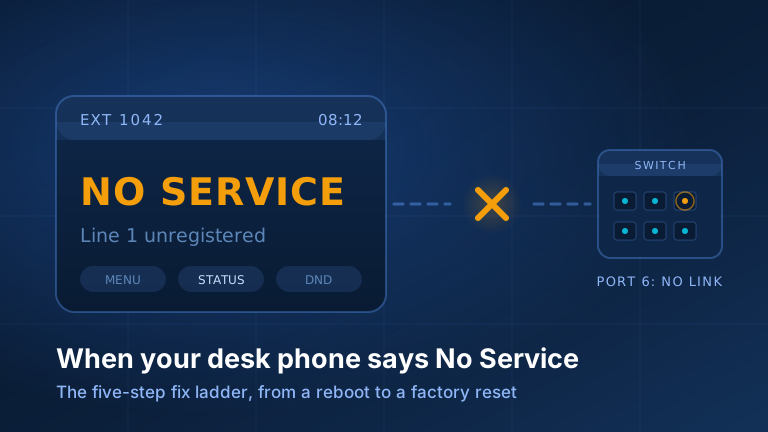
When a Yealink desk phone on your 3CX system goes quiet and the screen reads No Service, the fix that clears most of these tickets takes ninety seconds: reboot that one phone. Not the internet, not the server. Hold the X key until the screen asks you to confirm, press the OK soft key, and give it two or three minutes.
And here is what stops half the people who would otherwise have already done it: you will not have to type in a password, an extension, or anything else. On every boot the phone fetches a provisioning file from the phone system, and that file carries the configuration and the authentication details. Credentials, speed dials and busy-lamp keys cannot be lost by restarting. If the phone comes back and still says No Service, the handset is probably fine; what is broken is the path between it and the phone system.
Step 1: the reboot, done properly
On the Yealink T5 series desk phones we deploy most often (T53, T53W, T54W; the touchscreen T57W has no X key, so hold its * key instead):
- Find the X key, the cancel key near the navigation cluster.
- Press and hold it until a confirmation prompt appears.
- Press the OK soft key under the screen.
- Wait two or three minutes, not twenty seconds.
If the phone is powered over its network cable, unplugging that cable and plugging it back in does the same job. Either way, one thing surprises people: the phone often reboots a second time a minute or two later. That is normal: it pulled newer configuration or firmware and restarted to apply it. Let it finish. Our walkthrough on rebooting a Yealink phone covers the conference models with no X key and the browser method that works on everything.
A reboot rebuilds the network lease and re-fetches the provisioning file. After a power cut, order matters: internet equipment first, then switches, then phones.
Step 2: read the status screen before you call anyone
From the idle screen press Menu (or the OK key) and choose Status. This is the path 3CX documents for reading a phone’s model and MAC during provisioning, and it lists the three values we will ask for: IPv4 address, MAC address and firmware version. That saves a ten-minute call.
| What you see | What it usually means |
|---|---|
| “No Service”, no line key lit | It has power and has booted but holds no registered account: either it cannot reach the phone system, or the phone system never answered. |
| “Account Unregistered”, or a line shown as unregistered | It reached the network and tried to register. Something in between dropped the attempt, or its account no longer matches. |
| Stuck on a welcome, initialising or obtaining-IP-address screen | It is asking for an address, or its provisioning URL, and getting no reply. Usually the switch port, the VLAN or DHCP. |
| Black screen, no backlight, no LEDs | Power. The port is not supplying it, the switch is over its power budget, or a cable or supply has failed. |
| Registered, calls connect, one side hears silence | A different failure (see below). |
If Status shows no IP address, stop troubleshooting the phone: it is asking your network a question and getting no answer.
Step 3: what changed on your network?
This is the single biggest cause in our ticket history. If a reboot does not fix it and the phone worked yesterday, somebody changed your network, and nobody connects the two events, because the phones were never the point of the change. The rest of this section is for whoever runs that network.
The firewall was replaced or re-ruled
A new firewall arrives with a default rule set that knows nothing about your phones. First suspect is SIP ALG, sometimes labelled a SIP helper, usually on out of the box. It rewrites the inside of voice signalling packets in transit, on the theory that this helps them survive address translation; in practice it mangles them. 3CX is blunt: use a device without SIP ALG or a SIP helper, or one where it can be switched off.
Second suspect is outbound web traffic. Phones fetch provisioning details and firmware over HTTPS, through services 3CX reaches on port 443 outbound, so a firewall inspecting, proxying or blocking that traffic leaves you with phones that boot perfectly and never provision. On-premise, the signalling and audio ports also need forwarding as documented, and the PBX hostname must resolve correctly from inside your own network.
The switch was swapped
Voice traffic often lives on its own VLAN, and that configuration lives in the switch, not the phone. Replace the switch, miss the port profile, and the phone lands on the wrong network with no route anywhere. We have sites where the right tag differs by floor. One office needed VLAN 40 on one side and 100 and 101 on the other, and that fact existed in one place only: the switch that had just been thrown out. Write your voice VLAN tags down somewhere that is not a switch.
The other switch problem is power: phones drawing power over the network cable compete for a fixed budget, so a replacement switch with a smaller one leaves the last ports dark. The tell is that some phones are black and others fine, with no pattern but which port they sit in.
Access control and MAC allowlists
Larger sites run access control that will not admit an unknown device until its hardware address is on an allowlist, and phones get missed because they are not laptops. Every new handset and every warranty replacement arrives with a new MAC and is quietly quarantined. It cuts both ways: a 3CX provisioning link is tied to one MAC, so swapping the handset means adding the new one to the extension by MAC.
The whole-office cutover
We have been called in more than once on the Monday after a weekend cutover, where a new provider replaced the gateway, firewall and switches and every phone was dead by morning. Nothing about the phone system had changed. If a cutover is on your calendar, tell us beforehand. Holding this together is what our managed network service exists for.
One more, if your PBX is hosted: at least one device on site proxies voice traffic for the rest, and on many of our deployments that falls to a Yealink desk phone running border controller software on board. Unplug it, or put it on the wrong VLAN, and every phone behind it goes to No Service. On a whole-site outage we check it first.
Cordless handsets: the base station is what is broken
A cordless handset does not register to your phone system. It registers to a base station over a radio link, and the base is the device with the network cable, the IP address and the provisioning URL. Carrying the handset closer to the router achieves nothing.
We see this constantly: brief power blips knock the cordless out while the desk phones ride through untroubled. The reason is mundane: desk phones take power from the switch and return when it does, in the right order; the base runs from its own supply, wakes before the network is ready, fails to provision and never retries hard enough. Restarting it fixes the problem, usually remotely. Factory resetting a base is another matter: holding its button for twenty seconds or more wipes every handset registration and the provisioning URL.
Step 4: firmware, without bricking the office
Your firmware version is on the same Menu > Status screen. On the systems we manage, the 3CX admin console tracks firmware across supported handsets, flags phones that have fallen behind and checks daily for new releases. The build it offers is the one 3CX has tested against the PBX, deliberately not always the newest the manufacturer has published. We stay on the tested track.
If you update phones yourself, our advice has not changed in years: never update the whole fleet at once. Do one first, ideally a spare or a desk that can lose ten minutes. Let it finish (an update reboots the handset at least once), then call in, call out, and check the busy-lamp keys still light. Only then move to batches of about five. A firmware step that goes wrong on one phone is a ticket; on forty at once it is a closed office.
Step 5: factory reset, and why it is genuinely last
On a Yealink T5 desk phone: power it on, wait for the idle screen, then hold the OK key until the screen asks whether to reset to factory settings, and confirm. Two exceptions, before you stand there holding a key that does nothing:
- On the T57W and Android-based T58 models it is the Redial key, held about five seconds, not OK.
- On the CP conference units it is the HOME key, held for roughly twenty seconds.
A reset is less frightening than it sounds: the phone wipes to defaults, reboots, is handed its provisioning URL again and rebuilds itself. 3CX in fact requires it for any second-hand phone that lived on another system. Two cautions. A handset on a carrier-customised firmware build may demand a password you do not have, so call us rather than locking yourself out further. And a reset phone with no working network path is as dead as before, because reprovisioning needs the network you have not fixed. Reset after Step 3, never instead of it.
A note on one-way audio
If the phone registers and calls connect but one party hears nothing, none of the above applies: signalling works and only the audio is dropped, nearly always because of a firewall (SIP ALG again, or an unforwarded audio port range). Resetting handsets will not touch it. It belongs with the other configuration problems that look like hardware faults and are not.
When to stop and call us
Hand it over when every phone is down at once, when you have rebooted and read the status screen and it still says No Service, or when the network changed and you do not know how. Four things turn a two-day thread into a same-morning fix:
- The extension number of the affected phone.
- Exactly what the screen says, word for word, including whether it is blank.
- The IPv4 address and firmware version from Menu > Status, if it is readable.
- Whether it is one phone or all of them, and anything that changed on the network or the power this week, however unrelated it seems.
Send that to support@telnamix.com and we can usually fix it remotely before anyone reschedules their morning. We build, run and repair these systems every day (both the 3CX phone systems and the networks underneath them), and if you would rather we were on the ticket before you noticed the phone was down, our ongoing support arrangements are worth a conversation.


